


Image
The “image” building block lets you show an image or a gif to the player. Use it to show learning content or some information relative to your game.
In-game view
The player is shown an image or a gif centered on the screen. To close it they must click on the x.
How to set it up
- Decide whether or not you want the image or the gif to be saved on the player's phone.
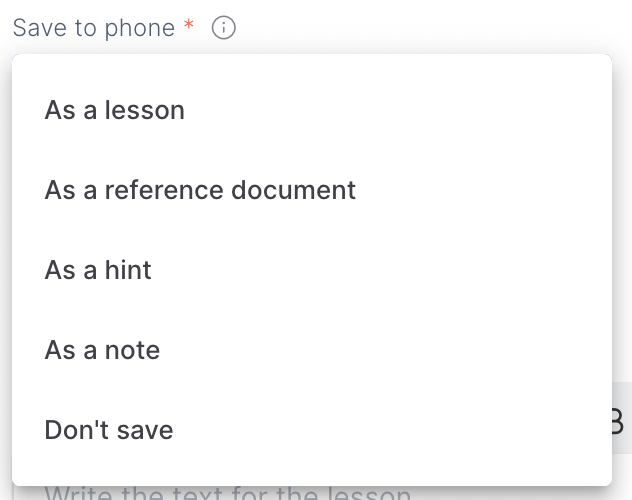
2. Give the image a title.
3. Select the image you want to show.
4. Decide whether the image will be shown in game or simply added to the phone for later reference.
TIPS AND TRICKS
- Use high-quality images in one of the following formats : png, jpg, gif
- Per default, all of the images uploaded to the library are automatically optimized
- If you're using multiple images in your course, make sure they all have the same format and style. This creates uniformity throughout the game.