


- Home
- Editor
- The building blocks
- Actions
- Drag object to the scene
Drag object to the scene
Description
The “Drag object to the scene” building block lets the player drag one of the objects in their inventory onto the scene. You decide which objects are correct; all the others count as incorrect, and the player sees a different message depending on the object they drag.
The available objects are the ones the player can collect with the “Pick up object” building block. Collected objects appear on the right side of the screen. If you want the player to drag the object onto an image with a specific solution area, see the “Drag objects” minigame.
In-game view
The player drags one of the objects in their inventory onto the scene. If the object is correct, they see the correct message; if it’s incorrect, they see the error message. If you check Non-assessed mini-game, the player doesn’t see any message in either case.
How to set it up
- Enter the building block name. This field is required.
- Under "Object(s) to drag", check the objects you want to be correct. You’ll see the objects that can be picked up in the game, all unchecked. You must check at least one; otherwise, you won’t be able to save the building block. The message boxes don’t appear until you check an object.

- Decide whether you want the object to disappear from the inventory when the player drags it. To do so, check "Remove object(s) from inventory when dragged".
- If you don’t want the player to receive any message, or you don’t want this building block to be assessed, check "Non-assessed mini-game". Checking it disables the message fields and the score fields (gaming metrics and skill indicators). Any variables you’ve defined are still saved.
- Under "Correct objects", write the correct message (up to 160 characters). You can use bold, italics and underline. By default, it reads “That’s correct.”
- If you want a different message for each correct object, check "Specific feedback per correct object" and write one message per object. If you leave it unchecked, the same message is shown for any correct object.
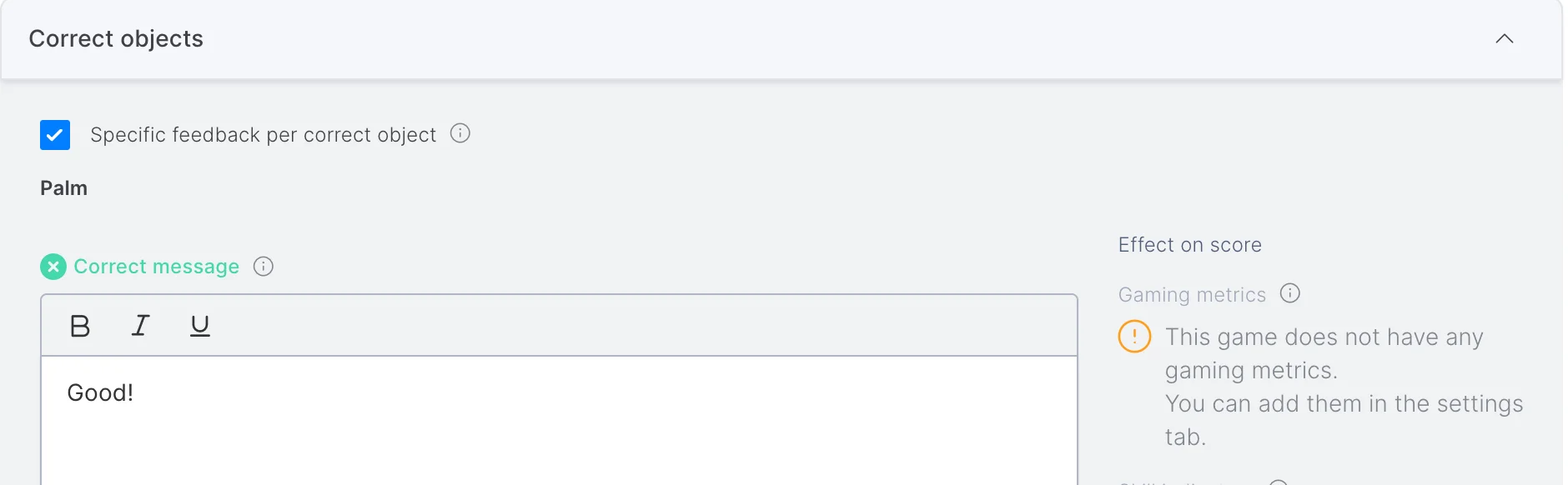
- The objects you didn’t check in step 2 are the incorrect ones. For them, a section like the "Correct objects" one appears under "Incorrect objects", where you write the error message the player will see. If you check all the objects, this section doesn’t appear.
- Under "Effect on score", set the building block’s effect on gaming metrics and skill indicators. If your game doesn’t have any gaming metrics yet, the editor lets you know and tells you that you can add them in the Settings tab.
- Under Additional settings, you can check "Building block required to finish level" and set the delay for this building block (in seconds). By default, the delay is 0.
- Click "Save".
Tips and tricks
- The player can only drag the objects in their inventory. Plan your levels and scenes so that the player has already picked up each object with the “Pick up object” building block.
- Unlike the “Drag objects” minigame, where an object has to be dragged onto a predetermined area of an image, with “Drag object to the scene” the player has to select the right object and drag it anywhere in the scene.
- If, after setting up the building block, you delete an object from the script or remove its “Pick up object” building block, that object is no longer in the inventory. When you reopen the building block, the editor removes any incorrect objects that no longer exist and warns you if a correct object has disappeared.
- If you publish the game without reopening the building block, and a correct object is no longer in the inventory, the player may get stuck. Check the building block every time you change the objects in the script.
- With “Non-assessed mini-game” checked, the player doesn’t receive any message when dragging an object. Use it only when you don’t need to give feedback or assess.