


- Home
- Editor
- The building blocks
- The minigames
- Clickable text
Clickable text
Description
This building block lets players interact with a text by clicking on one or more parts of it. This text can be an email, a document, a report, some figures, etc.
In-game view
The game will show one or more texts in which players will have to find one or more predetermined fragments. You can mark fragments as incorrect to increase the difficulty of the mini-game.
How to set it up
- Enter a name in “Block name”. It is required and helps you find the block in the script.
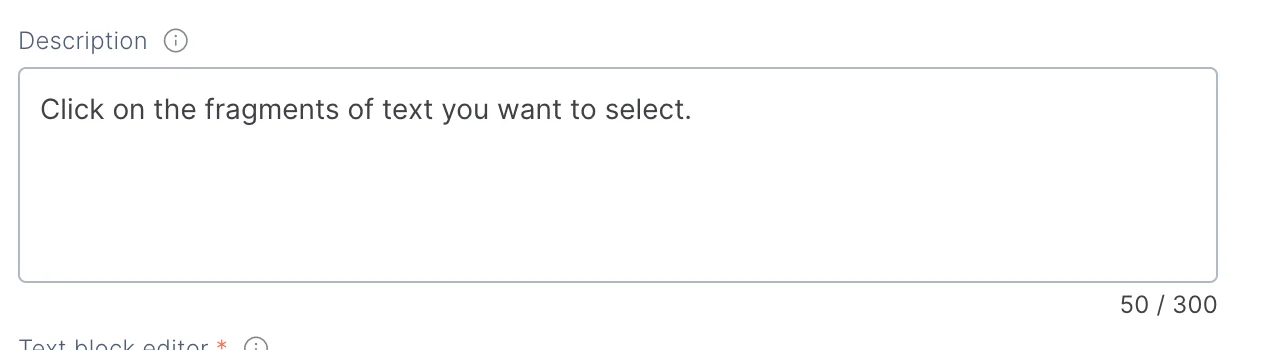
- Keep, modify or delete the “Instructions”. This short text should be used to give players context. It is optional and allows up to 300 characters. By default, “Click on the text fragments you want to select.” is displayed.
- In the “Text block editor”, click “Add text” and write the full text of “Text block 1”. You can format it with bold, italics, underline and lists.
- Click “Select clickable text” and choose whether it will be correct or incorrect.
- In the text you have already written, select a word or fragment to finish creating the clickable text. This information will appear in the “Clickable texts” panel on the right, under “Correct” or “Incorrect”.
- Repeat steps 4 and 5 for each clickable text you want to add. In each block:
- Choose whether you want the clickable texts to light up when the player hovers over them, with the option “Show clickable texts to the player”.
- Choose whether you want the player to click on the correct texts in the exact order you have set, with the option “Click correct texts in order”.
- Choose whether you want the player to solve the block by clicking on any correct text, with the option “Resolve this text block by clicking on any correct piece of text".
- About the result: write the “Correct message” and the “Error message”, up to 500 characters each. At the same time, in “Effect on Score (in points)”, specify how many points should be added or deducted from the game’s indicators and competencies depending on the answer.
- If your game doesn’t have indicators or competencies yet, you can add them in the Settings tab.
- If you check “Specific feedback for clickable text”, you can write a different message for each clickable text.
- About the help: the player can buy a hint or solve the mini-game by clicking the puzzle icon. This way, they won’t get stuck in the game and can move forward, although they will lose points. Check “Buy hint” if you want to offer a hint, and set how many points the solution costs in “Solution cost impact (in points)”.
Note: the “Buy solution” option is always selected by default. You can unmark it, but take into consideration that the player may get stuck in the game if they don’t find the answer.
- If you want to add another text, click “Add text block” and repeat the same process. Each block has its own clickable texts, options, result and help. You can collapse a block with the arrow or delete it with the trash icon.
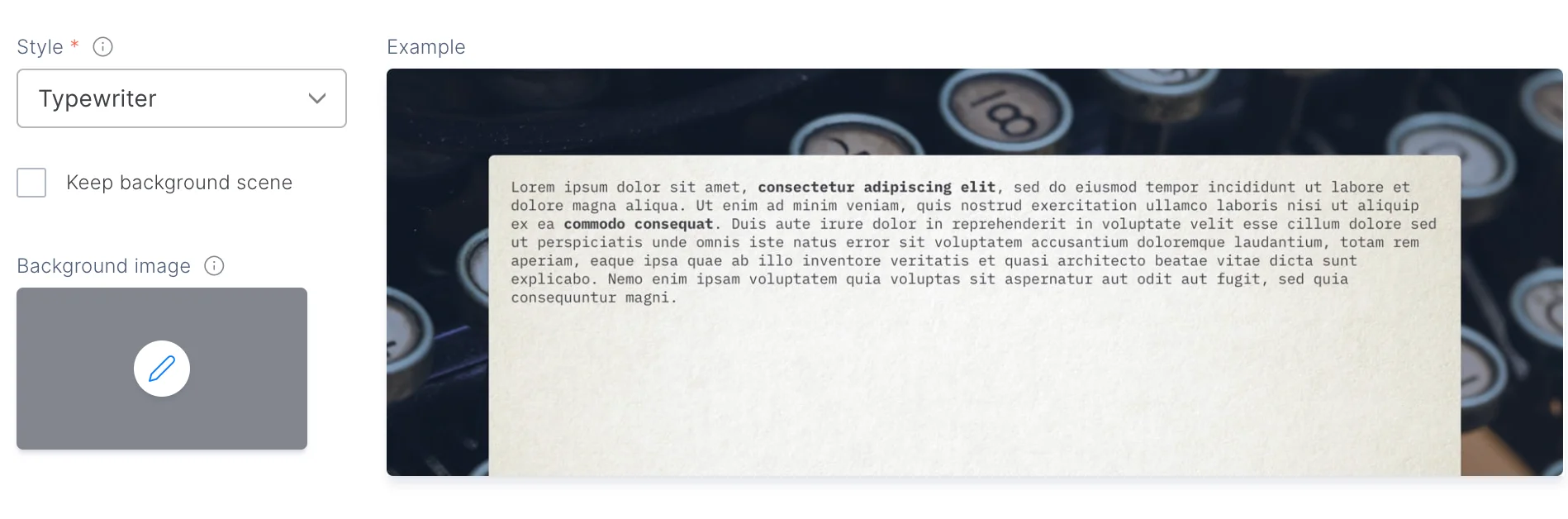
- Choose the look of the mini-game in “Style”. It is required. Under “Example” you will see how it looks. If you want, add a “Background image” by clicking the pencil.
Within the additional settings, you can select these options:
- Show correct/total: the player sees the correct texts they have found and the total number they need to find.
- Allow leaving the mini-game:
- If you enable this option, the player can leave the mini-game before completing it.
- If you disable it, the player cannot exit the mini-game until they solve it.
- Building block required to finish level: the player must complete the mini-game to pass the level.
- Delay for this building block (in seconds): seconds to wait before the block appears.
Click “Save”.
Tips and Tricks
- Use short, realistic texts that your players will recognize from their day-to-day work: an email, a contract clause, a report.
- Mark fragments that make sense on their own, such as a sentence or a piece of data, rather than isolated words.
- Since the text is written in the block, it is translated along with the rest of the game, and you don’t need to redo images for each language.